


Unlock Pokecut VIP for just

Home > AI Replace > Add Objects to Photos Online for Free with AI
Add Objects to Photos with AI for Natural Edits Online Free
Pokecut Add Object AI is a beginner-friendly tool for e-commerce sellers, creators, and marketers to seamlessly blend new products or props into photos with perfect light and shadow. No Photoshop skills needed!
⚡Quick Brush ✨Realistic Blend ✅ 100% Free








How Can Pokecut Add Objects to Photos Naturally?
Add Objects with Prompts or Reference Images
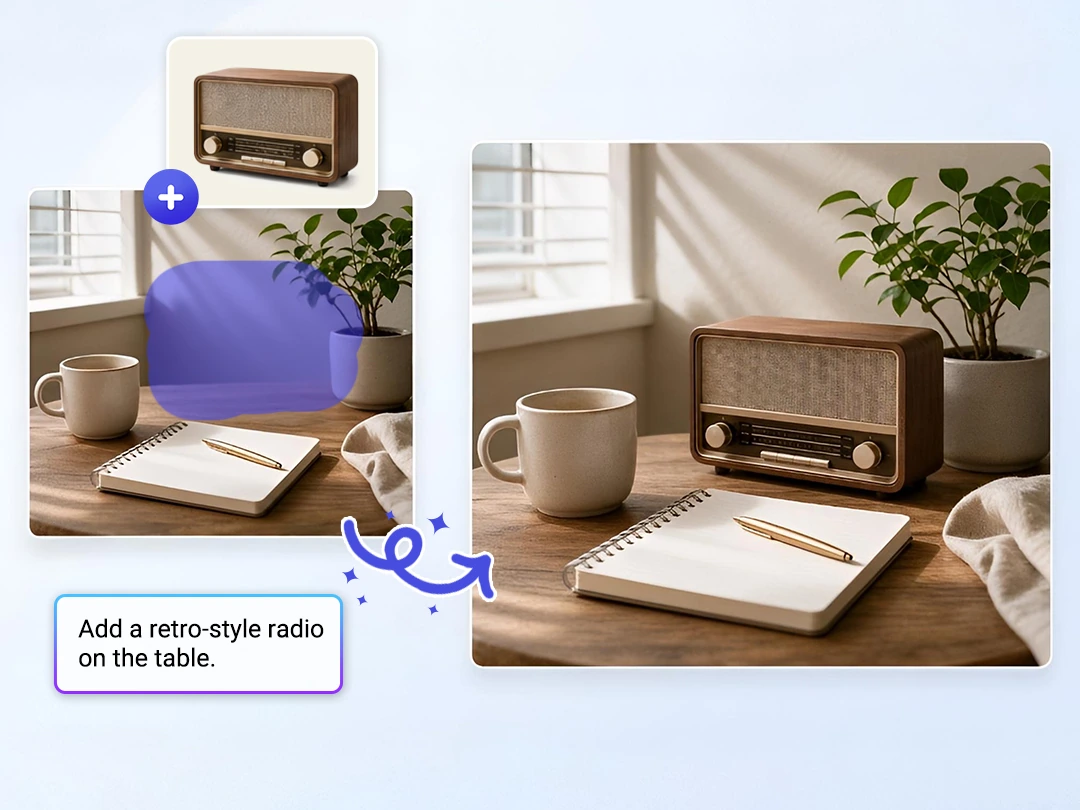
Add the object you have in mind without hunting for the perfect cutout. Write a short prompt when the idea is simple, or use a reference image when the item must match a real product. Pokecut keeps the edit tied to the area you choose. You can easily use AI to replace any part of your photo.
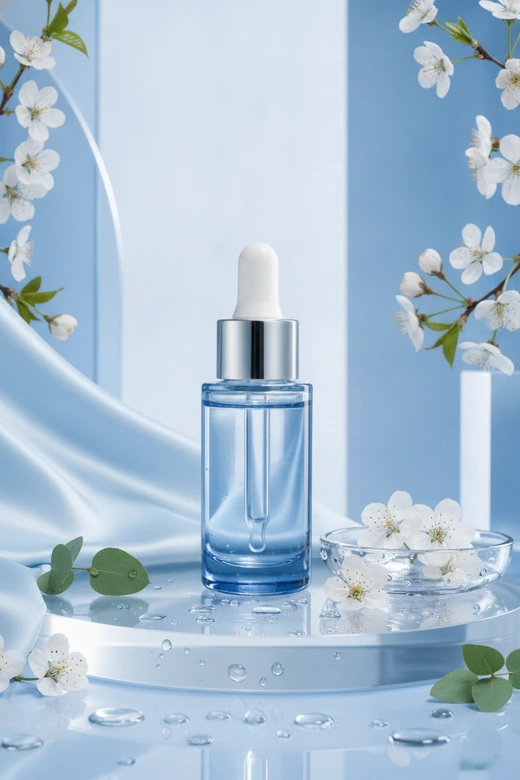
Reference images help when words are not enough. A product bottle can keep its shape and color closer to your source while the AI fits it into the scene. That gives you more control when you add something to an image with AI for product shots or personal edits.

Brush the Exact Area for Precise Object Placement
Place the new object where it should appear instead of hoping the AI guesses right. Brush the exact spot you want to change, and Pokecut uses that selected space as the edit target. This helps protect the person, product, and background details you want to keep.
The area-based flow is easier than moving layers by hand. It also gives better direction than a text prompt alone. By leveraging advanced AI inpainting, the tool blends the new object seamlessly into the original photo's lighting and shadows rather than letting it float on top. The result looks deliberate, clean, and completely realistic.
Blend New Objects with Natural Light and Shadows
A realistic object edit should look like it belongs in the original scene. Pokecut reads the nearby light and shadow before building the new content. The result looks less like a pasted sticker and more like a photo that was shot that way.
This matters most when a small mismatch would distract from the subject. Use generative fill when you need to fill a selected space with an object that follows the surface and camera angle around it. The added item can feel grounded instead of floating above the photo. That keeps the edit believable.
Add or Replace Objects Without Photoshop Skills
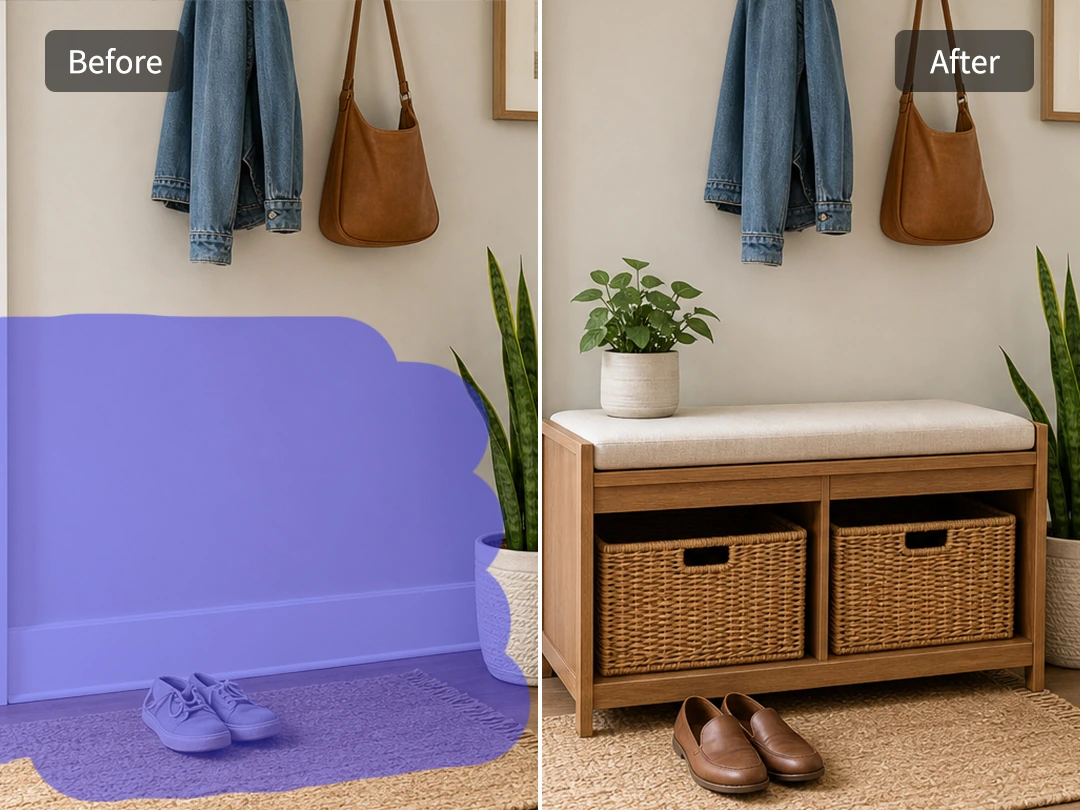
Create the edit without learning masks or manual shadow painting. Pokecut can add a new object to an empty area or replace something that does not fit the shot. Upload the image, brush the target spot, describe the change, and review the result before downloading it.
That shortcut helps when a post or product image needs a cleaner detail fast. Easily edit your images with prompts using this advanced AI tool. Turn a heavy Photoshop-style workflow into a lighter online edit, while still giving you room to refine the result before you use it. No design training is needed.
Where Can You Use Pokecut to Add Things to Photos?

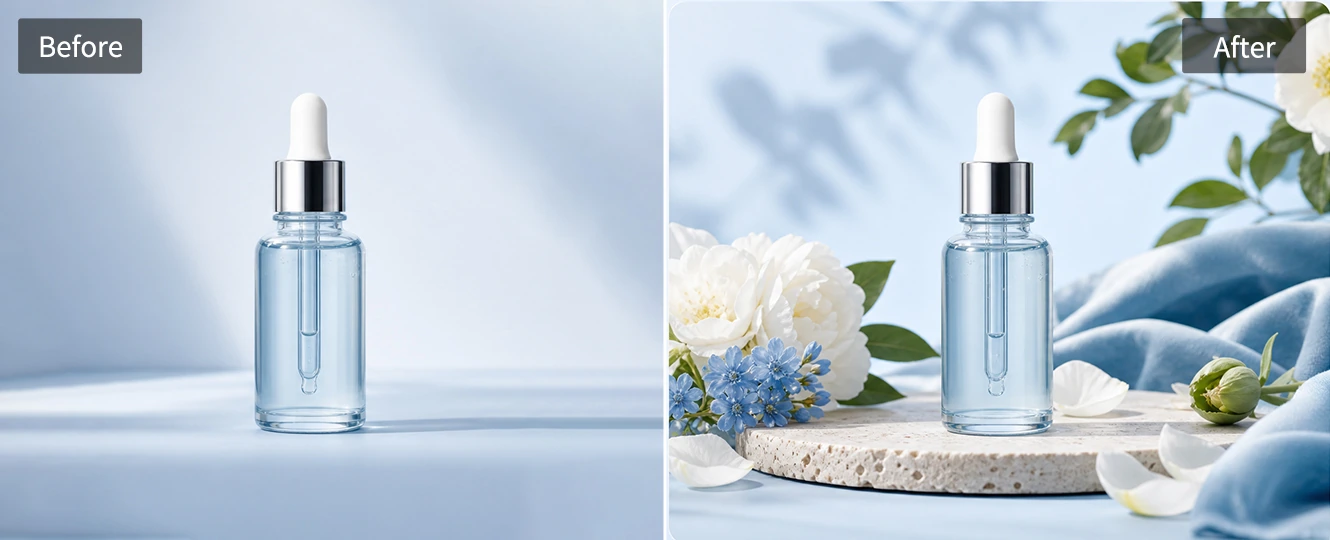
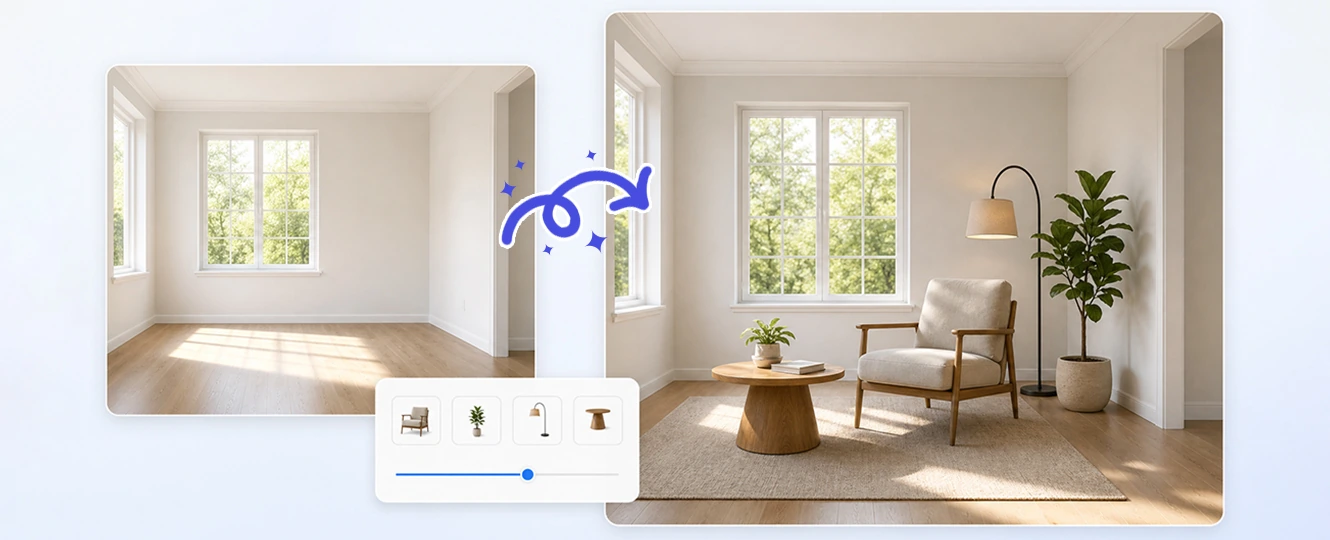

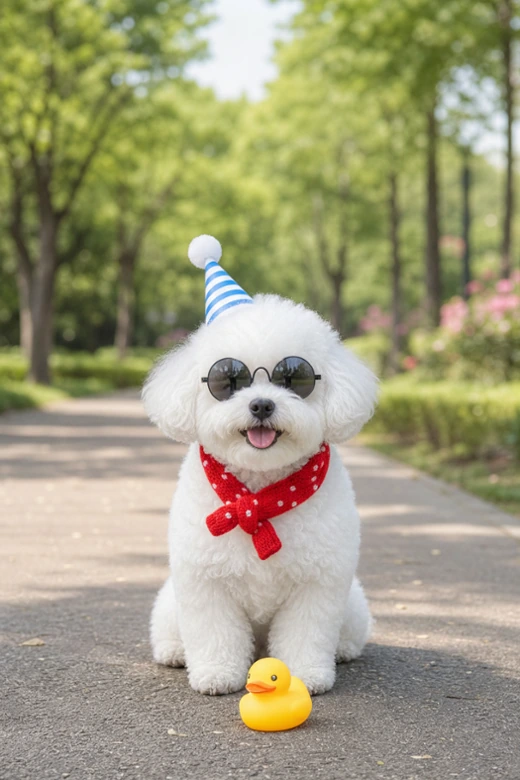
Make everyday photos feel more complete before you post them. Add a hat to a pet photo, a drink to a travel shot, or a small prop to a selfie without turning the image into a sticker collage. Pokecut keeps the edit focused on the brushed area, so add stuff to photos for social media without rebuilding the whole picture.
How to Add Objects to Photos with AI
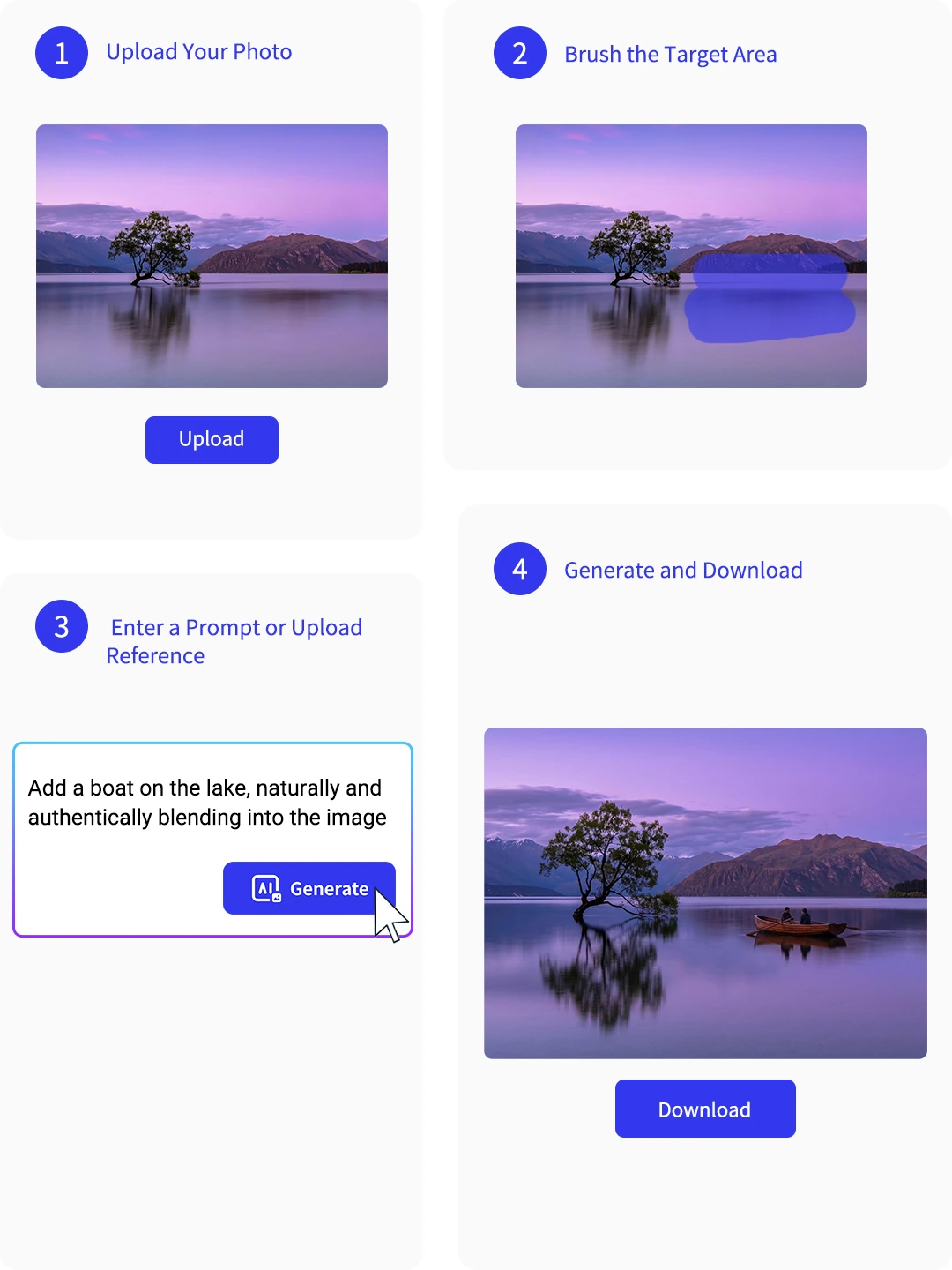
Step 1: Upload Your Photo
Upload a clear photo in a supported image format. A sharp original helps Pokecut read the scene and place new details when you add objects to photos online.
Step 2: Brush the Target Area
Mark the place where the new item should appear. Brush a little around the object area so the AI can blend edges, shadows, and nearby texture.
Step 3: Enter a Prompt or Upload Reference
Describe the object you want to add, or upload a reference image when the item must match a product, prop, or visual style. Keep the request specific.
Step 4: Generate and Download
Preview the AI edit, adjust your prompt if needed, then export the finished image as a high-quality PNG or JPG for social, marketing, or personal use.
What's the Best Way to Add Objects to Photos?
Compare Pokecut AI, Photoshop, and sticker-based editing before choosing the workflow that fits your photo. While Photoshop suits expert retouchers and stickers work for playful graphics, Pokecut AI bridges the gap for quick, realistic object placement.
Why Users Choose Pokecut to Add Objects to Photos
Users like getting realistic object edits without learning a full design app.

Mia C.

"I added small props to a product photo in minutes. The image looked more like a real shoot, and I did not have to open Photoshop."
Ethan B.
"I used it on a travel photo and added a drink in my hand. The shadow looked natural enough that it did not feel like a sticker."
Lena M.
"The reference image helped me place a specific bottle in the scene. I still adjusted the prompt once, but the second result worked well."
Noah R.
"I wanted to preview furniture in an empty room photo. Brushing the corner first made the placement much easier to control."
Ava W.
"I made a birthday post by adding balloons behind the group photo. It saved me from searching for matching PNG stickers."
Lucas G.
"Replacing a distracting object was simple. I brushed over it, described a cleaner prop, and the new item matched the table better than I expected."

Reviews from: Reddit, Product Hunt, G2, TrustRadius, Google Play, App Store, and more.
FAQs About Adding Objects to Photos
What kinds of objects can I add to a photo?
You can add people, pets, furniture, food, product props, or seasonal details. Pokecut works best when you describe the object’s position and style clearly.
Will the added object look realistic in my photo?
Yes, when the source photo and prompt are clear. Pokecut reads light, shadows, and perspective, so added objects to photos can look less like pasted layers.
Can I choose where the new object appears?
Yes. Brush the exact area first, then describe the placement in plain English. This helps Pokecut add things to a photo with better position control.
Can I use a reference image for a specific object?
Yes. A reference image helps Pokecut understand the item’s shape, color, and style. It is useful when you add object to photo with prompt text alone.
Can I add props to product photos for marketing?
Yes. Pokecut can add props to product photos for ads, store pages, and social posts. Keep the product visible so the added item supports the shot.
Does the tool work on iPhone or Android?
Yes. Open Pokecut in a mobile browser, upload your photo, and brush the area you want to edit. It works well for quick add stuff to photos tasks.
Which image formats can I upload to Pokecut?
Pokecut supports common image formats such as JPG, PNG, WebP, and BMP. A clear file helps the AI read the scene before adding objects to photos.
Pokecut's Photo Editor Trusted by Professionals and Users

1M+ Users Worldwide
Pokecut generates over 500,000 images every day


Professional Privacy Protection
Ensure 100% data privacy for every photo

Trusted by Well-Known Brands
Apple, Google, PayPal, Stripe, Product Hunt, G2, TrustRadius
 POKECUT




Copyright © 2026 Pokecut All Rights Reserved.